
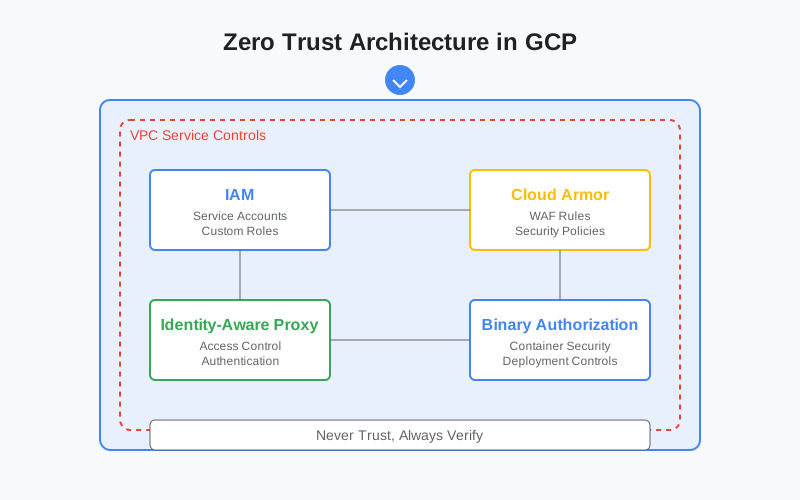
In today’s cloud-native world, the traditional “trust but verify” security model is becoming obsolete. With distributed teams, microservices, and dynamic cloud environments, implementing Zero Trust architecture isn’t just an option—it’s a necessity. Let’s explore how to implement Zero Trust in Google Cloud Platform (GCP) using Terraform.

Understanding Zero Trust in GCP Context
Zero Trust boils down to three core principles:
- Verify every request
- Use least-privilege access
- Assume breach
GCP provides native tools that align perfectly with these principles. Let’s see how to implement them.
Setting Up Your Foundation
1. Identity and Access Management (IAM)
First, let’s set up proper IAM using Terraform:
# Create custom role with minimal permissions
resource "google_project_iam_custom_role" "minimal_role" {
  role_id     = "minimalCustomRole"
  title       = "Minimal Custom Role"
  description = "Minimal permissions following zero trust"
  permissions = [
    "compute.instances.get",
    "compute.instances.list"
  ]
}

# Bind role to service account
resource "google_project_iam_binding" "project" {
  project = var.project_id
  role    = google_project_iam_custom_role.minimal_role.id

  members = [
    "serviceAccount:${google_service_account.service_account.email}",
  ]
}

# Create service account
resource "google_service_account" "service_account" {
  account_id   = "zero-trust-sa"
  display_name = "Zero Trust Service Account"
}
2. Network Segmentation with VPC Service Controls
Set up VPC Service Controls to create security perimeters:
resource "google_access_context_manager_service_perimeter" "service_perimeter" {
  parent = "accessPolicies/${google_access_context_manager_access_policy.access_policy.name}"
  name   = "accessPolicies/${google_access_context_manager_access_policy.access_policy.name}/servicePerimeters/restrict_storage"
  title  = "restrict_storage"
  status {
    restricted_services = ["storage.googleapis.com"]
    resources = ["projects/${var.project_number}"]

    ingress_policies {
      ingress_from {
        identities = ["serviceAccount:${google_service_account.service_account.email}"]
        sources {
          resource = "projects/${var.trusted_project_number}"
        }
      }
      ingress_to {
        resources = ["*"]
        operations {
          service_name = "storage.googleapis.com"
          method_selectors {
            method = "google.storage.objects.get"
          }
        }
      }
    }
  }
}
3. Implementing Identity-Aware Proxy (IAP)
Secure your applications with Identity-Aware Proxy:
resource "google_iap_brand" "project_brand" {
  support_email     = "support@yourdomain.com"
  application_title = "Cloud IAP protected Application"
}

resource "google_iap_client" "project_client" {
  display_name = "Test Client"
  brand        = google_iap_brand.project_brand.name
}

resource "google_iap_web_backend_service_iam_binding" "binding" {
  project = google_compute_backend_service.default.project
  web_backend_service = google_compute_backend_service.default.name
  role = "roles/iap.httpsResourceAccessor"
  members = [
    "user:jane@yourdomain.com",
  ]
}
Implementing Zero Trust Step by Step
1. Set Up Binary Authorization
Ensure only trusted containers are deployed:
resource "google_binary_authorization_policy" "policy" {
  admission_whitelist_patterns {
    name_pattern = "gcr.io/google_containers/*"
  }

  default_admission_rule {
    evaluation_mode  = "ALWAYS_DENY"
    enforcement_mode = "ENFORCED_BLOCK_AND_AUDIT_LOG"
  }

  global_policy_evaluation_mode = "ENABLE"
}
2. Enable Cloud Armor for WAF
Protect your applications with Cloud Armor:
resource "google_compute_security_policy" "policy" {
  name = "zero-trust-policy"

  rule {
    action   = "deny(403)"
    priority = "1000"
    match {
      expr {
        expression = "evaluatePreconfiguredExpr('xss-stable')"
      }
    }
    description = "Deny XSS attacks"
  }

  rule {
    action   = "allow"
    priority = "2147483647"
    match {
      versioned_expr = "SRC_IPS_V1"
      config {
        src_ip_ranges = ["0.0.0.0/0"]
      }
    }
    description = "default rule"
  }
}
3. Implement Logging and Monitoring
Set up comprehensive logging:
resource "google_logging_project_sink" "sink" {
  name = "zero-trust-sink"
  destination = "storage.googleapis.com/${google_storage_bucket.log_bucket.name}"
  filter = "resource.type = gce_instance AND severity >= WARNING"

  unique_writer_identity = true
}

resource "google_storage_bucket" "log_bucket" {
  name     = "zero-trust-logs-${var.project_id}"
  location = "US"
}
Best Practices and Common Pitfalls
- Always Use Service Accounts
- Never use user credentials in production
- Rotate service account keys regularly
- Use workload identity when possible
- Network Segmentation
- Use separate VPCs for different environments
- Implement proper firewall rules
- Use Private Google Access
- Regular Auditing
- Review IAM permissions regularly
- Monitor audit logs
- Set up alerts for suspicious activities
Measuring Success
Monitor these metrics:
- Number of unauthorized access attempts
- Policy violations
- Security incidents
- Response times for security events
Conclusion
Implementing Zero Trust in GCP requires careful planning and a systematic approach. Start with these foundations:
- Strong identity management
- Network segmentation
- Comprehensive monitoring
- Regular auditing
Remember, Zero Trust is a journey, not a destination. Keep iterating and improving your security posture based on your organization’s needs and threats landscape.
Have you implemented Zero Trust in GCP? Share your experiences in the comments below! 🔒